When Android says storage is full, the fix is not always to delete your favorite game. Photos, old videos, duplicate downloads, messaging files, browser caches, and forgotten APKs can take more room than people expect. The trick is knowing what is safe to remove and what might erase progress or force a huge re-download.
A clean phone does not have to be empty. The goal is to keep enough working space for installs, updates, cache, and downloads so games are not fighting the storage system every time they open.
Fix stuck downloads without starting over too soon
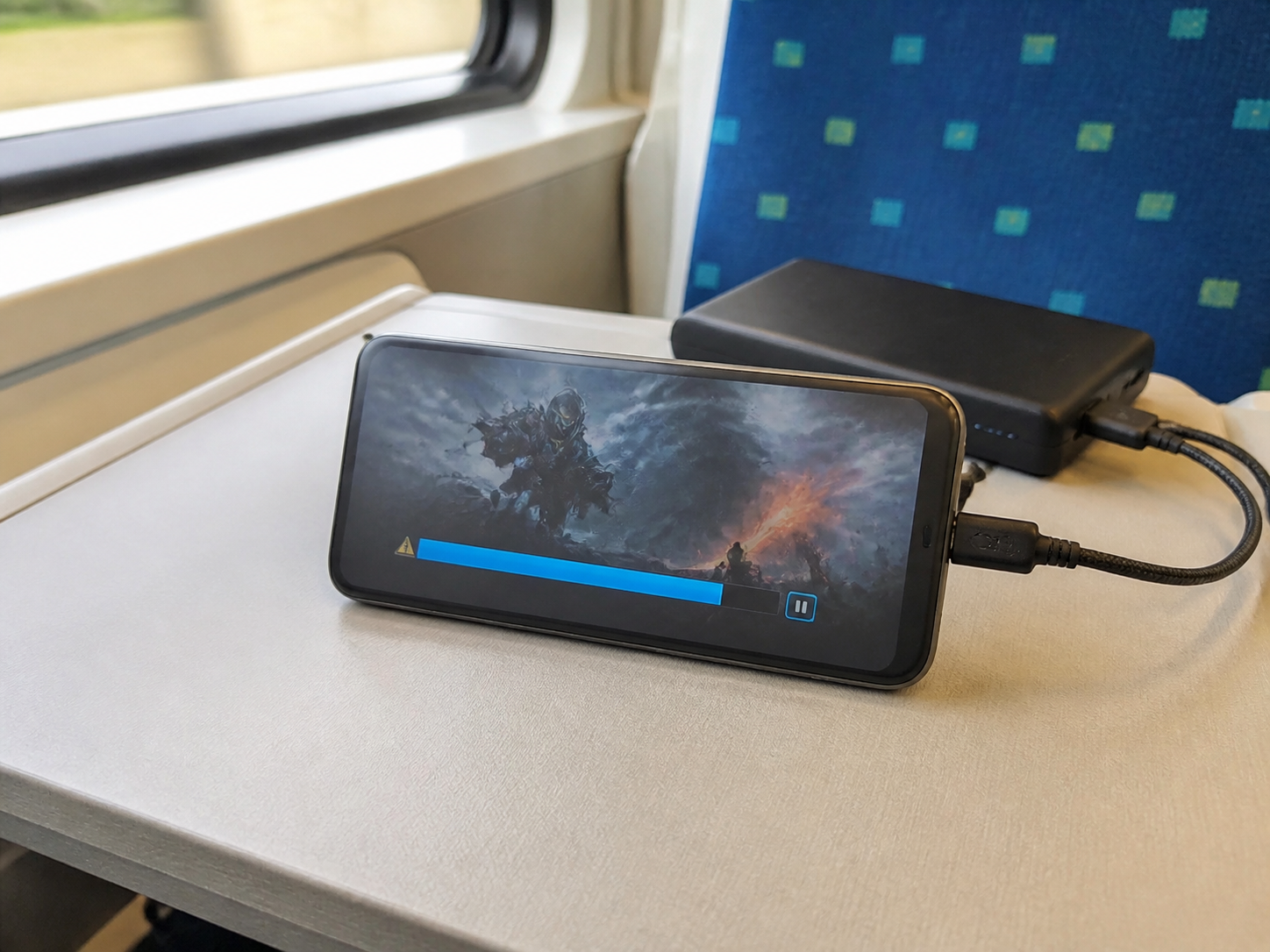
When a download is stuck at 99 percent, it may be verifying files, unpacking data, or waiting for storage. Give it a little time before canceling. If it stays stuck, restart the phone, check free space, and try again from the same official source. Canceling repeatedly can leave partial files behind, which then take more space. If the store has a clear cache option, use that before deleting the whole game. Starting over is sometimes necessary, but it should not be the first move.
Watch system and app data growth
Android storage can disappear into system data, messaging media, browser cache, short videos, and game resources. If the storage screen shows a large Apps section, open it and sort by size. You may find a social app, video app, or browser using more space than your games. If System takes a lot of room after an update, restart the phone and wait a day before judging it. Some temporary update files are cleaned automatically. If they remain, check your phone brand’s storage tools for safe cleanup options.
Prepare before installing a large game
Before installing a large game, charge the phone, connect to stable Wi-Fi, free more storage than the listed size, and close heavy apps. If the game downloads extra resources after launch, keep the game open until the first setup finishes. Do not start a screen recorder or switch between many apps during unpacking. This first setup is when many files are created and verified. A clean install session reduces the chance of missing data, broken resources, or repeated downloads.
Check real free space, not just the game size
A 2 GB game may need much more than 2 GB during installation. Android often downloads a package, unpacks it, writes temporary files, then downloads extra resources after the first launch. If your phone has only a little more free space than the listed game size, the install can fail near the end. Try to keep at least double the listed size free for large games. For very big titles, a few extra gigabytes makes the first launch smoother and reduces the chance of a stuck resource download.
Start with obvious large files
The safest cleanup usually starts outside the game folder. Open storage settings or a file manager and look for videos, screen recordings, old downloads, duplicate images, and exported files from chat apps. These files are easier to understand than hidden app folders. Sort by size if your file manager allows it. A few long videos can free more space than clearing every small cache. Move important photos or videos to a computer or cloud storage if you need them, then remove the local copies only after checking they are backed up.
Understand cache versus data
Cache is temporary data an app can rebuild. Data usually includes settings, logins, downloaded resources, and sometimes local saves. Clearing cache is normally safe and can help if downloads or loading screens are stuck. Clearing data is stronger and can reset the app completely. Before clearing data for a game, make sure your account is linked and your progress is backed up. For browsers, clearing cache can free room but may log you out of sites or make pages load fresh again. Use the lighter option first.
Clean the Downloads folder
The Downloads folder quietly collects installers, images, documents, and files you only needed once. Old APK files are especially common if you install apps from outside Google Play or download updates manually. Deleting old APK files does not remove the app that is already installed, but make sure you are deleting the installer, not a game data folder. Sort the folder by date and size. If you do not recognize a file, open its details before deleting it. A simple Downloads cleanup can fix many low-storage install problems.
Bottom line
For downloads, stability matters as much as speed. Use a steady connection, pause other downloads, keep enough free storage, and let large games finish their first setup before judging whether something is broken.
If you use cloud backup, confirm that files are actually uploaded before deleting local copies. A thumbnail in a gallery app does not always mean the full video or photo is safely stored elsewhere.