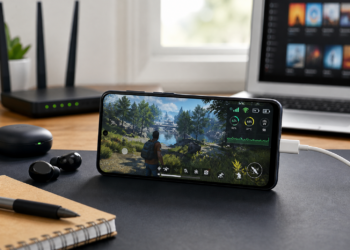
When a mobile game starts lagging, most people blame the phone first. Sometimes that is fair, but lag is usually a mix of heat, storage, memory, graphics settings, and network stability. The useful part is that you do not need to guess wildly. You can work through the symptoms and remove the biggest causes one by one.
Quick check before you start: restart the phone once, make sure the game is not downloading extra resources, and play one short round without screen recording. If that short test is smoother, the problem is probably not the game alone. It is something around the game stealing heat, memory, or bandwidth.
Start with the symptom
Before changing settings, notice how the lag feels. If the game runs well for five minutes and then gets choppy, heat is probably involved. If it freezes when a match starts or when you enter a busy area, memory and storage may be the issue. If characters jump around, shots register late, or the game suddenly rewinds your movement, that is usually network instability. Different lag has different causes, and treating all of it the same wastes time. Write down when it happens: after charging, on mobile data, during downloads, after an update, or only in one game. That small note often points to the fix faster than any app can.
Check heat before everything else
Heat is one of the most common reasons games slow down on Android. A phone can open a game smoothly, then reduce performance as the processor warms up. This is normal protection, but it feels like sudden lag. Remove thick cases during long sessions, avoid playing in direct sun, and do not charge while playing heavy games unless you really need to. If the phone is already warm from video, maps, or downloads, give it a few minutes before launching the game. Cooling the phone will not turn a budget device into a flagship, but it can stop the sharp drop that ruins a match.
Free storage the safe way
Low storage can make games stutter because the phone has less room for cache files and temporary data. Try to keep at least 10 to 15 percent of storage free. Start with large videos, duplicate downloads, old APK files, and app caches from streaming or social apps. Be careful with folders you do not understand, especially game data folders, because deleting the wrong files may force a huge re-download. If a game lets you clear only temporary resources inside its settings, use that first. Storage fixes are not glamorous, but they often help older phones feel less stuck.
Close the right background apps
Closing every app all the time is not magic, but closing heavy apps before gaming can help. Video apps, browsers with many tabs, screen recorders, file downloads, VPNs, and social apps can all compete for memory or network. Use the recent apps screen to close the obvious heavy ones, then wait a few seconds before opening the game. Do not keep tapping cleaner buttons every minute while gaming, because that can interrupt useful cached processes. The goal is not to make Android empty. The goal is to stop a few noisy apps from fighting the game.
Lower graphics in a balanced way
Many players lower every setting to minimum, then hate how the game looks and change everything back. A better approach is to lower the settings that hurt performance most. Shadows, reflections, high frame-rate modes, anti-aliasing, and ultra textures are usually expensive. Resolution scaling and effects quality can also matter in open-world games. Keep textures medium if the phone has enough storage and memory, but reduce shadows and effects first. If the game offers a stable 30 FPS mode, try it. A steady 30 often feels better than a phone chasing 60 and dropping constantly.
Make the network more stable
For online games, stability matters more than headline speed. A speed test can look good while the game still suffers from packet loss or ping spikes. Move closer to the router, use 5 GHz Wi-Fi only if the signal is strong, and pause downloads or cloud backups. If many people share the same Wi-Fi, try playing at a quieter time or switch to mobile data for a test. Some games also connect to faraway servers automatically, so check the server region in the game settings. A lower graphics setting will not fix a bad route to the server.
Use battery modes carefully
Battery saver can reduce background activity, but it can also limit CPU speed and make games worse. Performance mode can help, but it may create more heat and drain. Test both for ten minutes instead of assuming one is always better. On many phones, the best option is normal battery mode with the game added to any built-in game mode. Turn off auto brightness if it keeps pushing the screen too high, and use a brightness level you can see comfortably. Battery settings should support steady play, not force the phone into a hot sprint.
Bottom line
The main idea is to make the phone predictable. Keep it cooler, give it breathing room, lower the heaviest settings, and make the connection stable. Once the game stops fighting the device, even an older Android phone can feel much more playable.