
Storage problems are one of the least exciting parts of mobile gaming, but they cause a surprising number of install errors, crashes, and slow downloads. A game may need space for the installer, the app itself, extra resources, cache, updates, screenshots, and temporary files. That means the number shown in the app store is often only part of the story.
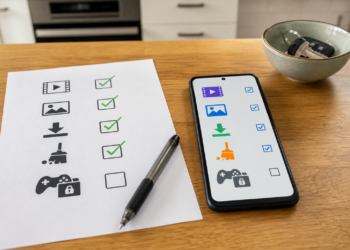
Think of this guide as a safe cleanup route. It starts with files you can recognize, then moves toward app settings only when needed. That order keeps you from losing game saves while trying to make space quickly.
Check real free space, not just the game size
A 2 GB game may need much more than 2 GB during installation. Android often downloads a package, unpacks it, writes temporary files, then downloads extra resources after the first launch. If your phone has only a little more free space than the listed game size, the install can fail near the end. Try to keep at least double the listed size free for large games. For very big titles, a few extra gigabytes makes the first launch smoother and reduces the chance of a stuck resource download.
Start with obvious large files
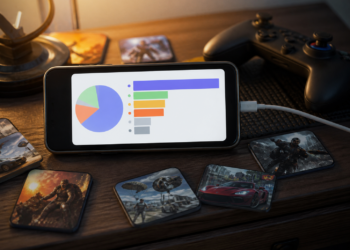
The safest cleanup usually starts outside the game folder. Open storage settings or a file manager and look for videos, screen recordings, old downloads, duplicate images, and exported files from chat apps. These files are easier to understand than hidden app folders. Sort by size if your file manager allows it. A few long videos can free more space than clearing every small cache. Move important photos or videos to a computer or cloud storage if you need them, then remove the local copies only after checking they are backed up.
Understand cache versus data
Cache is temporary data an app can rebuild. Data usually includes settings, logins, downloaded resources, and sometimes local saves. Clearing cache is normally safe and can help if downloads or loading screens are stuck. Clearing data is stronger and can reset the app completely. Before clearing data for a game, make sure your account is linked and your progress is backed up. For browsers, clearing cache can free room but may log you out of sites or make pages load fresh again. Use the lighter option first.
Clean the Downloads folder
The Downloads folder quietly collects installers, images, documents, and files you only needed once. Old APK files are especially common if you install apps from outside Google Play or download updates manually. Deleting old APK files does not remove the app that is already installed, but make sure you are deleting the installer, not a game data folder. Sort the folder by date and size. If you do not recognize a file, open its details before deleting it. A simple Downloads cleanup can fix many low-storage install problems.
Pause other downloads and updates
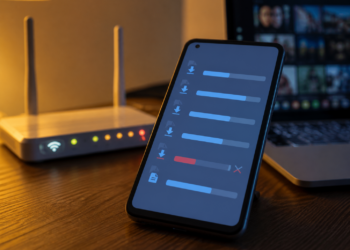
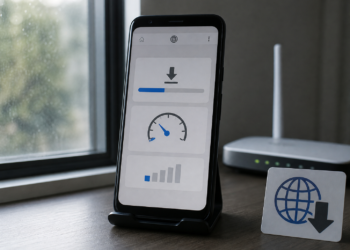
If a game download keeps failing, check whether other apps are updating at the same time. App store updates, cloud photo backups, browser downloads, and messaging media can all compete for bandwidth and storage. Pause them, restart the game download, and keep the screen awake for the first few minutes. On some phones, aggressive battery settings may slow or stop downloads in the background. If the file is large, stay on a stable connection and avoid switching between Wi-Fi and mobile data halfway through.
Use Wi-Fi and mobile data as tests
A failed download is not always a storage issue. Try downloading a small app from the same store. If that fails too, the network, account, or store cache may be the cause. If small downloads work but the large game fails, storage, signal drops, or background restrictions are more likely. Switch from Wi-Fi to mobile data for a short test, or try another Wi-Fi network. Do not use expensive mobile data for a huge download unless you know your plan can handle it. The test is only to identify the problem.
Check app store and browser settings
Google Play, third-party stores, and browsers each have their own download behavior. Google Play may wait for Wi-Fi, pause on low battery, or require account verification. Browsers may ask for storage permission or fail if the download location is unavailable. If a browser download fails repeatedly, try changing the download folder, clearing browser cache, or using a different trusted browser. Avoid download managers that inject ads or request unrelated permissions. A simpler download path is often more reliable.
Bottom line
The best storage fix is careful, not dramatic. Remove files you understand first, clear cache before data, and protect game progress before reinstalling. A few gigabytes of breathing room can solve more problems than another random cleaner app.
After cleanup, restart the phone once and check storage again. Some apps do not release temporary files until they close fully, and a restart gives Android a chance to settle before the next large download.